, , , , , , , , , ,

Get the Most out of Google Apps for Education with Synergyse Training (NOW FREE!) by Guest Blogger Michael Wallace

Guest Post by friEdTech Technical Guru Michael Wallace reposted from Mike's blog here.

Synergyse is Free!

Synergyse is now free. For those of you who are not familiar with Synergyse, it is a Chrome extension that can supplement Google training. There are hours of videos that cover basic tasks a person new to Google would want to learn about. They also cover a few in depth topics. At The Village School we purchased Synergyse for the entire staff. I did find the price a bit high, but now that it's free I would recommend it to any organization. There are two ways to install Synergyse, individually, or by Google OU,  I'll cover both.

The first way is to install it for your self. In Chrome go to the Chrome Web Store and search for Synergyse. You should see an extension that looks like this:

Click the "Add to Chrome Button" and you should get a pop up like this:

Click "Add Extension" and that's it. Now when you go to Gmail, Drive, or a host of other Google pages you should see the Synergyse logo next to your profile photo like this:
If you don't see it the first time refresh the page and it should load.

This is all great and dandy for one or two people, but what if you have hundreds or even thousands that you want to share this great tool with? If you're an admin for your Google Apps domain you can push it out to the entire organization or any Google OU you wish. You start at admin.google.com and click on Apps. Then you go to "Additional Google Services" -> "Chrome Management" -> "User Settings." On the left of this page it should have your organizational structure like this:
My structure here is simple, yours may be more complex. Select the OU you want to push Synergyse to. Press CTRL+f  (Command+f for Mac) and type force-installed in the find box.
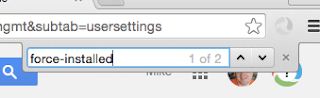
You should see the "Force-Installed Apps and Extensions" setting.
Click on "Manage force-installed apps" and select "Chrome Web Store." Type Synergyse in the box then click add.
Click Save to close this window and make sure to click save again on the Chrome User Settings page.
That's all there is to it. The next time a user in the OU you pushed it to loads Gmail, Drive, or one of the other supported Google services they will see the Synergyse logo and can click on it to learn about working in the Google environment.

Share:
Read More
, , , , , , ,

Part 2: Get your Computer (and Files) Ready for Summer (Install Google Drive)

Part 2 of the series "Get your Computer Ready For Summer" explores the best way to upload ALL your files (or a whole bunch of files) over a longer period of time without having to drag and drop or babysit the process. We'll do this using the downloaded version of Google Drive which you'll install on your computer.

This video is for educators who need to back up their files so that their computers can be refreshed for the summer. Don't lose your valuable files, back up now to the cloud! This technique will also let you access your files from any computer or from your phone.

Links you'll need:

https://www.google.com/drive/download/


Share:
Read More
, , , , , , ,

Part 1: Get your Computer (and Files) Ready for Summer

Part 1 of the series "Get your Computer Ready For Summer" explores the fastest and easiest way to upload your files to Google Drive. If you have a whole lot of files, wait for Part 2, which will show how to install Google Drive and sync files from your computer's hard drive to the cloud. If this video helps you, then share it!

This video is for educators who need to back up their files so that their computers can be refreshed for the summer. Don't lose your valuable files, back up now to Google Drive! This technique will also let you access your files from any computer or from your phone.

Links you'll need:

http://drive.google.com


Share:
Read More
, , , , , , , , , , , ,

Project Based Learning (PBL): How Do I Know if I'm Doing it Right?!?

This video seeks to answer the #1 question I get about Project Based Learning, and that is, "Am I Doing This Right?!?" The question speaks to the integrity of my favorite people, educators, and their desire to do the best they can by the students they teach. I hope this video helps you know where to focus your energy when you are trying to shift your teaching practices.

Special (and HUGE) thanks to my colleague Kristy Edgar for the amazing animations, graphics, and visuals for this video. She made a simple soundtrack come alive and be entertaining.


Share:
Read More
, , , , , , , , , , , , , , ,

Handy Google URLs from @friEdTechnology Amy

Until I started researching for this infographic, I didn't even know some of these handy URLs existed. Did you? Do you have one to add? Let me know in the comments!

Thanks,
Amy

Version 4...


Share:
Read More
, , , , , , , , , ,

Google Cardboard Apps for the Classroom via @friEdTechnology

  • Google Streeview, as explained here
  • The Cardboard app itself (Android, iPhone) which includes the following . . . 
    • Earth: Fly where your fancy takes you on Google Earth
    • Tour Guide: Visit Versailles with a local guide
    • My Videos: Watch your videos on a massive screen
    • Exhibit: Examine cultural artifacts from every angle
    • Photo Sphere: Look around the photo spheres you've captured
  • Watch YouTube videos in 360, here are some videos to try out
  • The New York Times VR stories located here
  • Titans of Space Guide to the Planets (Android)
  • Orbulous, which the makers describe as “just looking at things.” What things? Greenbot reports “You’ll see vivid, 360-degree photos from around the world, whether it’s mingling amidst tourists on aging architecture, looking out over a city surrounded by sparkling blue water, or even taking in the sights within a museum. A small bit of background noise adds to the immersion.” (Android)
  • Polar Sea 360° is a 10 part television series and interactive journey that follows sailors, scientists, hunters and artists on a journey through the Arctic’s Northwest Passage. Part of the series was shot using revolutionary 360 degree cameras, that put you in the center of the action and let you experience the Arctic like never before.(Android, iPhone)
  • YouVisit VR lets you step into exotic locations like Machu Picchu; browse leading colleges and universities, including Harvard and Yale; become immersed in breathtaking live events like TomorrowWorld. (Android, iPhone)
For more about Google Cardboard, check this out.

Share:
Read More
, , , , , ,

How to Get "Google Expeditions" via Google Cardboard Today, No Waiting! (FREE VIRTUAL FIELD TRIPS!)


If you've been curious about the Google Expeditions Pioneer program but your school hasn't been chosen for a visit, you can check out a little known feature right now that is very much like Expeditions!

All you need is Google Cardboard (literally a viewmaster made of cardboard), which you can buy here or lots of other places, and an app on your smartphone called Google Streetview, Android / iOS.

Next, open the Streetview App on your phone and tap the Explore area:

Want to make sure your Cardboard viewer works optimally with your smartphone? Tap this settings button from within any panorama . . .

Then click "Setup."


Hope you enjoyed this, if you did, please share it or let me know in the comments!

Share:
Read More