Tampilkan postingan dengan label google. Tampilkan semua postingan
, , , , , , ,

MIND BLOWN: Now Possible . . . Narration in Google Slides (and it's EASY and FREE)

So, we hope everyone who reads the friEdTechnology OR Brenham ISD blog is ready to have their minds blown! 

By Guest Blogger Tom Spall, find him on Twitter @Tommyspall


I would like to thank two incredibly smart, Google-tastic friends: Jessica Powell and Amy Mayer from FriEdTechnology for this blog post! It's awesome what happens when folks put their minds together! #PLN

In a recent Brenham Tech Daily blog post we discussed the new G-Suite update to Google Slides where you can now upload a video straight from your Google Drive into your Slide Presentation. Jessica Powell has taken this a step forward and decided to turn her presentations into voice-navigated (self-paced) presentations.

The practical use for this in education and/or self-paced training is enormous. Just think of educators conducting training sessions online using this method. Or students taking a self-paced, voice-navigated test at their own speed. Every day Google is allowing for us to change the game in education!

Below is the original idea from my buddy, Jess P.


"I'm sure by now you've heard the awesome news....you can now insert videos from Google Drive into your Slides presentations so that you don't have to rely on YouTube videos.

One tip I wanted to share with you all that I'm using with my self-paced course materials, Voice-Navigated Presentations:

Use Screencastify's "Webcam" recorder to narrate your slides.
Upload to Google Drive.
Insert the video into your slide.
Then, right click on your video to see "Video options"
Choose "Autoplay when presenting"
I shrink my video super small so it's hidden.

There you go. Now your slides presentations can be self-paced, using the link to slide option, AND voice-narrated. Making online coursework using Slides is super easy now!"


+Amy Mayer (@friEdTechnology) was able to take this great idea and create a wonderful tutorial for you that takes you through the various steps needed to make this happen! Watch below:

Narrated Slides from Amy Mayer


Share:
Read More
, , , , , , , , , , , , , , ,

Handy Google URLs from @friEdTechnology Amy

Until I started researching for this infographic, I didn't even know some of these handy URLs existed. Did you? Do you have one to add? Let me know in the comments!

Thanks,
Amy

Version 4...


Share:
Read More
, , , , , , , , , ,

Google Cardboard Apps for the Classroom via @friEdTechnology

  • Google Streeview, as explained here
  • The Cardboard app itself (Android, iPhone) which includes the following . . . 
    • Earth: Fly where your fancy takes you on Google Earth
    • Tour Guide: Visit Versailles with a local guide
    • My Videos: Watch your videos on a massive screen
    • Exhibit: Examine cultural artifacts from every angle
    • Photo Sphere: Look around the photo spheres you've captured
  • Watch YouTube videos in 360, here are some videos to try out
  • The New York Times VR stories located here
  • Titans of Space Guide to the Planets (Android)
  • Orbulous, which the makers describe as “just looking at things.” What things? Greenbot reports “You’ll see vivid, 360-degree photos from around the world, whether it’s mingling amidst tourists on aging architecture, looking out over a city surrounded by sparkling blue water, or even taking in the sights within a museum. A small bit of background noise adds to the immersion.” (Android)
  • Polar Sea 360° is a 10 part television series and interactive journey that follows sailors, scientists, hunters and artists on a journey through the Arctic’s Northwest Passage. Part of the series was shot using revolutionary 360 degree cameras, that put you in the center of the action and let you experience the Arctic like never before.(Android, iPhone)
  • YouVisit VR lets you step into exotic locations like Machu Picchu; browse leading colleges and universities, including Harvard and Yale; become immersed in breathtaking live events like TomorrowWorld. (Android, iPhone)
For more about Google Cardboard, check this out.

Share:
Read More
, , , , , ,

How to Get "Google Expeditions" via Google Cardboard Today, No Waiting! (FREE VIRTUAL FIELD TRIPS!)


If you've been curious about the Google Expeditions Pioneer program but your school hasn't been chosen for a visit, you can check out a little known feature right now that is very much like Expeditions!

All you need is Google Cardboard (literally a viewmaster made of cardboard), which you can buy here or lots of other places, and an app on your smartphone called Google Streetview, Android / iOS.

Next, open the Streetview App on your phone and tap the Explore area:

Want to make sure your Cardboard viewer works optimally with your smartphone? Tap this settings button from within any panorama . . .

Then click "Setup."


Hope you enjoyed this, if you did, please share it or let me know in the comments!

Share:
Read More
, , , , , , , , , , , , ,

Google Edu Infographic: How to Force a Copy of a Document


Can't see the image via email? Visit the blog here.

Try it out! Click this link to take a copy of the file. This technique also works on other Google filetypes (Sheets and Slides).

Original URL:

https://docs.google.com/a/friedtechnology.com/document/d/1CqUbWOHedWr9WiLO7M4aM9IIDPple1HhDGSx23tzerA/edit?usp=sharing

Edited URL (the Force Copy URL):

https://docs.google.com/a/friedtechnology.com/document/d/1CqUbWOHedWr9WiLO7M4aM9IIDPple1HhDGSx23tzerA/copy
Share:
Read More
, , , , , , , , , , , ,

Google Edu Infographic: Getting Started with Add-Ons


More Add-Ons for Edu can be found at http://goo.gl/0YJ8Og and http://goo.gl/Yj8WoM

Can't see the image via email? Visit the blog here.

How to get Add-Ons:
  • Open a Google file
  • Click Add-Ons
  • Search for or Choose the Add-On you Want
  • Click the Blue Button that says +FREE 
  • Use the Add-On by clicking "Add-ons" from the menu bar in your file


Share:
Read More
, , , , , , , , , ,

Google Edu Infographic: Top Google Add-Ons for Education (Revised)


More Add-Ons for Edu can be found at http://goo.gl/0YJ8Og and http://goo.gl/Yj8WoM

Can't see the image via email? Visit the blog here.
Share:
Read More
, , , , , , , , , ,

Learning to use the New Autocrat is Working SMARTER

Autocrat is a ROBOT that does your work for you. You heard me right. It's like Rosie from the Jetsons. If you don't take a few minutes to learn this, you're literally working HARDER not SMARTER, so come on y'all, who wants to do this? Stay late today, watch, then save TONS of time later when Autocrat is working for you.


As you can see, learning Autocrat is just like hiring the gal below without all the interpersonal drama. Do it. 

Share:
Read More
, , , , , , , , , , , , , ,

What IS Google Classroom?

If you've been wondering what Google Classroom is (or is NOT), this video from moi is for you! Should you get ready for implementation? Can you replace your current system with Classroom? This video will help you answer those burning questions. Then, join the discussion below this post on Google+ to share how your school is using Classroom to improve instruction.

Also, don’t forget to install the free Synergyse training for Classroom by visiting https://www.synergyse.com/ and clicking the large green Install button!


Share:
Read More
, , , , , , , , , , , ,

Three Minute Tech Tip: Google Chrome Extension TabCloud

TabCloud is my FAVORITE Google Chrome Extension. It allows me to upload a set of tabs then open them on a different computer, at a different time, or just after restarting my computer. INDISPENSABLE! If you enjoy it, please share this post or like and share the YouTube video. 


Share:
Read More
, , , , , , , , , , ,

Getting Started with Google Classroom

As you may have heard, Google Apps for Education recently released Google Classroom. While it is NOT a Learning Management System (LMS), it does simplify procedures for teachers sharing files with students. Most notably, it automatically creates a copy of a specified file from Google Drive for each student within an organizational structure then allows students to "turn in" those files virtually, which changes the permissions of the file from student-owned back to teacher-owned. Students retain view rights. If you're looking for a tool to simplify and save time when using Google Apps for Education with your students, it's arrived! Hope you enjoy this hastily made video. Please leave comments if you have questions, and I'll do my best to get back to you.


Share:
Read More
, , , , , , , , ,

Getting to Know the New Google Drive Features for the New School Year

You may have noticed some pretty significant changes to Google Drive lately, but if you haven't, no doubt you will as you begin the 2014-15 school year. Here's a great overview from Alice Keeler's blog and here's one in video form from me. Hope these help you get started on the right foot!


Share:
Read More
, , , , , , , , , , ,

Smarter Chrome Lesson 2: Themes & Extensions (Video)

Themes may not be essential to using Chrome, but they sure are fun! Learn how to get and change your theme then see how to install extremely useful utilities into your Chrome browser.


For email subscribers, see the video here

Share:
Read More
, , , , , , , , , , , , ,

Graphic Design, Chrome-o-fried! Guest Post by Brian McLane

by Brian McLane

Brian_McLane_Photo.png
Secondary Educator - 32 years, Ed-Tech Junkie, MA Teaching & Learning with Technology, “Head in the Cloud; Caught in the Web”

Chromebooks for Graphic Design?

I teach a high school desktop publishing class which includes graphic design, page layout, image editing, and more. We can use Chromebooks for almost everything we do. And we use completely free cloud software to do it. No Adobe Creative Suite, no Microsoft Office, no expensive, high-learning-curve software. Should I be teaching industry-standard software? Why? I teach the concepts; the tools don't really matter. My students can learn the basics in the numerous free Google Apps and Web-based applications that are available for graphic design. Let's take a look!

Image Editing

One of the first things my students need to learn is image editing. Google Apps offers more image editors than we will ever need! Our go-to app is Pixlr. We use the Pixlr Editor, but easier versions with fewer features (Pixlr Express and Pixlr-O-Matic) are also available right on the home page. Another excellent Chrome extension is Pixlr Touch Up, which allows you to quickly open an image from your computer or Google Drive and do basic editing. Pixlr Editor, on the other hand, is a Photoshop-esque application. Pixlr serves us well for basic image editing such as cropping, resizing, converting files (especially in creating png files from other formats), retouching, and adding text and effects. Other image editors available for Chrome are PicMonkey, BeFunky, Photo Editor, Sumo Paint, pZap, iPiccy, to name a few.

Print and Digital Publishing Software

Lucidpress.com
Without a doubt, LucidPress (LucidPress for Google Drive) - Layout and Design is the best web-based desktop publishing application I have found. And believe me, since the closure of the online Aviary Creative Suite, I have searched to the end of cyberspace. We had been using LucidChart for Education for creating print media, and it was adequate. Lucid Software then released LucidPress in October, 2013. Techcrunch featured LucidPress in a posting on October 2, 2013.
LucidPress includes over 70 templates for creating both print and digital newsletters, brochures, flyers, pamphlets, photo and video books, invitations, and more. I don't allow my students to use templates; they must start with a blank page and create their own design, but the templates are there if needed. LucidPress integrates with Google Drive and is available for Google Chrome in the Chrome Web Store. I especially like the collaboration feature, which allows me to create a "team" (class) of all my students. Their projects are automatically shared with me, and on my computer I can watch them work in real time! They can also work together on shared documents.
LucidPress has a clean, easy-to-use interface. See a screenshot of the LucidPress Editor. Give LucidPress a try. You will find that it is a terrific free alternative to Microsoft Publisher or Adobe inDesign.
Chromebooks are not just Google Drive-Driven
All of the sites I've discussed can, of course, be accessed on any laptop or desktop machine with internet access. So why am I focusing on Chromebooks? Many people are probably under the impression that Chromebooks are useless outside of their integration with Google Drive. After all, you can't even install programs on a Chromebook. That's actually the beauty of Chromebooks! You don't have to install software! All the software is in the cloud; a Chromebook doesn't rely on Google Drive alone. So if you have a Chromebook (or Chromebooks in your school/organization), you can do much more with it than you may realize.
In part two of Chromebooks for Graphic Design, I will take a look at Weebly for Web design and give a quick shout-out to some other useful Google Apps and Web-based software for graphic design, so check back soon!
Lucidpress screenshot:
Lucidpress screenshot.png
Share:
Read More
, , , , , , , ,

Getting Ready for the Texas Google Summit

The Techs4Tex team spent a fast-paced and exciting day today in Brenham, TX preparing for the upcoming Texas Google Summit coming up May 17, 2104.

We began by laying out the schedule (about 20 concurrent sessions).

Below is Brenham ISD Tech Director Kim Strauss breaking rules by drawing on the table with a dry erase marker, which amazed us all . . .


Also pictured Shepherd ISD's Tech Diva Pam Cadwalder, Brenham ISD Instructional Technology Specialist Troy Kuhn, Coldspring-Oakhurst Consolidated ISD's awesome ELA specialist Laura Kile. There were also a bunch of other awesome people present, just so you know.

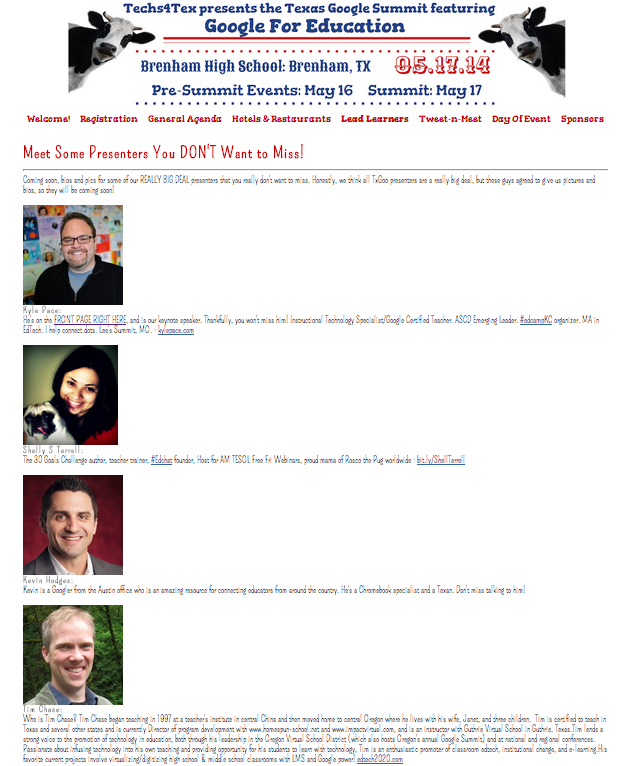
We emailed with our keynote speaker Kyle Pace (so excited to have him visit us in TX), and more of our big stars including Shelly Terrell and Tim Chase. We also added a few of these guys who are kind of a big deal to our Lead Learners page, but there are so many amazing presenters sharing their knowledge it was hard to know where to stop.

One of the sessions I'm most excited about is going to be provided by teacher extraordinaire Linda Yollis and her 3rd grade students, literally world famous for their classroom blog.

Also, did you know that TCEA Teacher of the year and White House Champion of Change Tech Ninja Todd Nesloney is going to be presenting? That's right. You sure don't want to miss his and fellow Tech Ninja Stacey Huffine's sessions!


At the end of the day, we visited the beautiful Brenham High School. Check out the amazing auditorium . . .


We're so excited for you to be our guests at this event. We want you to have a great time, to learn a ton, and to feel welcome in the spaces we are working to create for you. We sure hope to see you there!

If you haven't yet heard our spokescow Cher sing, you better check out the video below before you go. 
Share:
Read More
, , , , ,

New to a Google District? Here Are a Few Skills to Get You Started . . .


Above is an embedded Google Presentation with full view access shared via Google Drive. If you don't see it, try this link. Please feel free to use it with your staff. I'd love to hear from you in the comments if you do.
Share:
Read More
, , , , ,

Smarter Gmail Lesson 10: groups vs. Groups

What's the difference between gmail groups and Google Groups? What features do each offer? When should you use a group or create a Group? It's a confusing issue. Why oh why do they have the same name?!? Hopefully this little video will help. . .

Share:
Read More
, , , , , ,

GeoGuessr: An Addictive Game with Educational Potential

Yesterday after work I walked into our Tech Department computer lab and saw two of our young techs playing a game. I walked over and sat with them, hoping to learn something new, and I sure did.

GeoGuessr (tag line "Let's Explore the World") is a game that works through Google Maps. When you pull up the site, you'll see a location at street view level via Google Maps. You can look around as much as you like; there's no time limit, but your goal is to figure out where in the world you are. Sometimes you can read street signs, sometimes you will examine the flora and fauna, and once in a while if you drive around in the bush long enough, you will locate a helpful kangaroo which will let you know you are in Australia not Africa. Trust me, that can be a tough distinction, as my two colleagues explained.  When you think you've got it figured out, drop the pin on the map and guess. The closer you get, the more points you receive. Once you guess, you get another location.

I just found out from my friend Jake (@duncanbilingual) that you can actually make your own GeoGuessr games using GeoSettr. What?!? Wow!

I hope geography, social studies, and teachers of world awareness of all kinds will be able to use this game. I can see how language arts teachers could use it to talk about and teach inferencing. (Are those signs written with Cyrillic characters? Where are those used? I think that's Russia!)

Let me know ideas you come up with to use this cool game in the classroom---or if you abandon Candy Crush for something from which you can actually learn!

Share:
Read More